

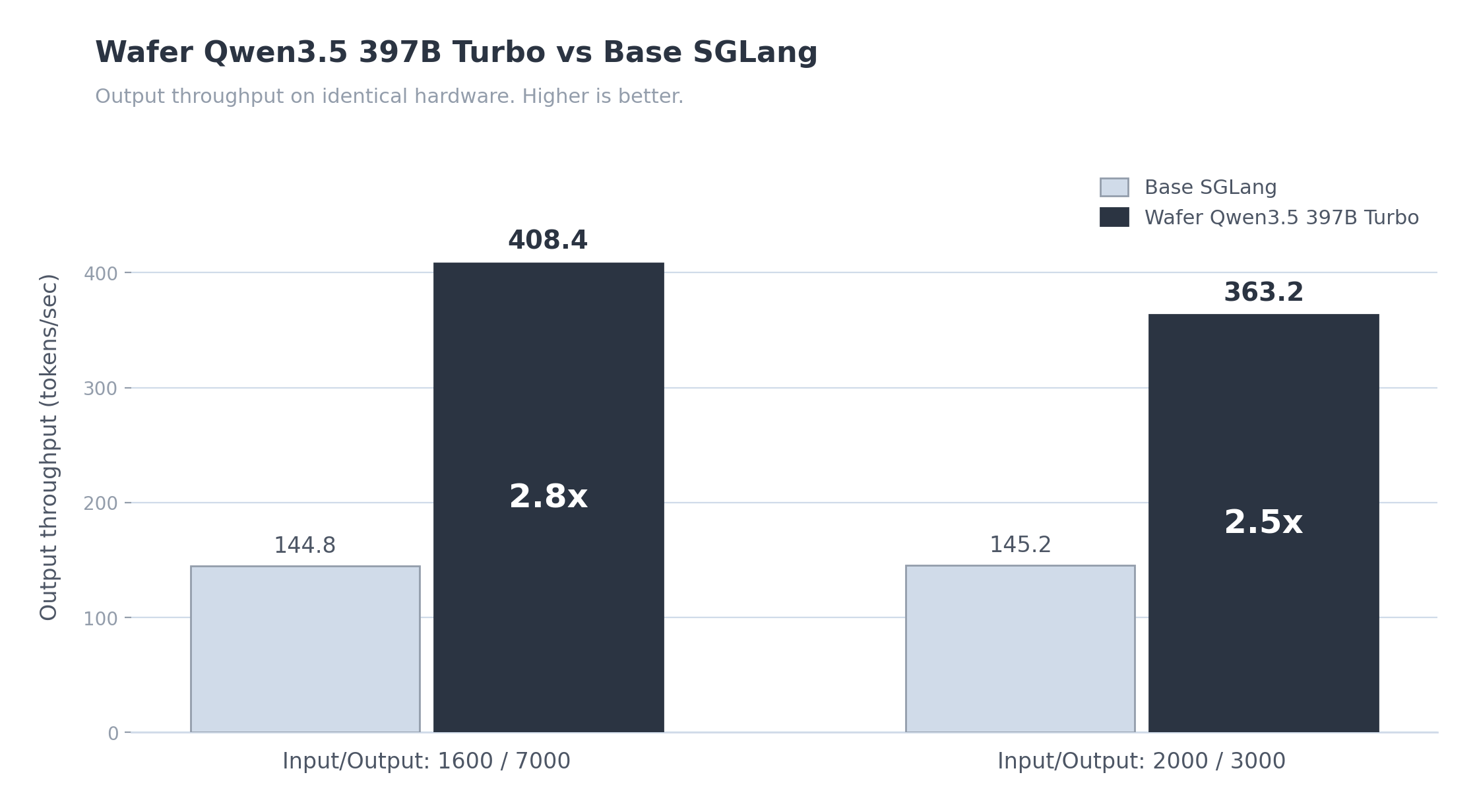
Qwen3.5-397B-A17B (running at 1.5–4x the speed of generic inference providers) and GLM-5.1. More fast open models land on the same subscription — no price increase.
Wafer Pass is built for Claude Code, OpenClaw, Hermes Agent, Cline, Roo Code, Kilo Code, OpenHands, and other agent harnesses. Wafer exposes both an OpenAI-compatible endpoint and an Anthropic-compatible Messages endpoint, so tools like Claude Code work out of the box.
Get a Wafer Pass for fast open-source models through a standard API endpoint. Plans start at $40/month.
Get your Wafer Pass: https://www.wafer.ai/pass
Wafer Pass is in early access. We’re onboarding developers in small batches. Features, availability, and pricing are subject to change.
Connection Details
Use the credentials from your Wafer access email with these values:| OpenAI-compatible endpoint | https://pass.wafer.ai/v1 |
| Anthropic-compatible endpoint | https://pass.wafer.ai/v1/messages |
| Authentication | API key |
| Concurrency | 1 inflight request per user |
model strings to pass on the OpenAI-compatible endpoint. Anthropic-compatible tools (Claude Code) don’t need a model override — Wafer auto-routes.
Claude Code uses the Anthropic Messages endpoint. Set
ANTHROPIC_BASE_URL=https://pass.wafer.ai and ANTHROPIC_API_KEY to your Wafer key — Claude Code will hit /v1/messages automatically and Wafer routes all requests to the fastest available model regardless of what model name Claude Code sends. All other harnesses (OpenClaw, Cline, Roo Code, etc.) use the OpenAI-compatible endpoint at https://pass.wafer.ai/v1.What’s Included
With an active Wafer Pass subscription you get:Qwen3.5-397B-A17BandGLM-5.1requests with zero per-token costs, optimized by the Wafer Inference Engine- Access through a standard OpenAI-compatible API and an Anthropic-compatible Messages API using your Wafer API key
- Works with Claude Code, OpenClaw, Hermes Agent, Cline, Roo Code, Kilo Code, OpenHands, and other agent harnesses
- 1 concurrent request today, with higher inflight limits coming soon
- New fast models as we release them — same subscription, no price increase
Models
model string | Family | Context | Notes |
|---|---|---|---|
Qwen3.5-397B-A17B | Qwen3.5, 397B MoE | 128K | 1.5–4x faster than base SGLang (see chart above) |
GLM-5.1 | Z.AI flagship | 200K |
model string to any OpenAI-compatible harness configured against https://pass.wafer.ai/v1. Claude Code and other Anthropic-compatible harnesses don’t need a model string — Wafer auto-routes.
Pricing
Pay monthly or save 20% with yearly billing.Monthly
| Plan | Price | Requests / 5hr window | Overage (input) | Overage (output) |
|---|---|---|---|---|
| Starter | $40/mo | 1,000 | $0.60/M tokens | $4.00/M tokens |
| Pro | $100/mo | 5,000 | $0.40/M tokens | $2.60/M tokens |
| Max | $250/mo | 20,000 | $0.30/M tokens | $2.00/M tokens |
Yearly (20% off)
| Plan | Price | Effective monthly | Requests / 5hr window | Overage (input) | Overage (output) |
|---|---|---|---|---|---|
| Starter | $384/yr | $32/mo | 1,000 | $0.60/M tokens | $4.00/M tokens |
| Pro | $960/yr | $80/mo | 5,000 | $0.40/M tokens | $2.60/M tokens |
| Max | $2,400/yr | $200/mo | 20,000 | $0.30/M tokens | $2.00/M tokens |
Getting Started
Apply for access
Go to wafer.ai/pass and pick your plan. We’re onboarding in small batches and will notify you when your spot opens.
Receive your access email
Once you’re approved, we’ll send you your Wafer endpoint, model ID, and API key.
Set Up Claude Code
Wafer exposes an Anthropic-compatible Messages endpoint athttps://pass.wafer.ai/v1/messages, so Claude Code can connect directly — no proxy needed.
For Claude Code, set ANTHROPIC_BASE_URL to https://pass.wafer.ai, not https://pass.wafer.ai/v1.
Configure Wafer as the endpoint
Set these environment variables in your shell profile (Or add them to Replace
~/.zshrc, ~/.bashrc, etc.):~/.claude/settings.json for a persistent, per-user config:YOUR_WAFER_API_KEY with the key from your Wafer access email.Start Claude Code
Qwen3.5-397B-A17B or GLM-5.1), use the OpenAI-compatible endpoint documented in the tool sections below.Set Up OpenClaw
Model string: the examples below use
Qwen3.5-397B-A17B. To use GLM instead, swap Qwen3.5-397B-A17B → GLM-5.1 anywhere a model ID appears. Both IDs are accepted on https://pass.wafer.ai/v1. Applies to every OpenAI-compatible setup section that follows (OpenClaw, Hermes Agent, Cline, Roo Code, Kilo Code, OpenHands, and the generic section at the bottom).Set Up Hermes Agent
Set Up Cline
Install Cline
Install the Cline extension from the VS Code marketplace, or search “Cline” in VS Code Extensions.
Configure Wafer as a provider
- Open VS Code and click the Cline icon in the sidebar
- Click the settings gear icon in the Cline panel
- In the API Provider dropdown, select OpenAI Compatible
- Fill in these fields:
- Base URL:
https://pass.wafer.ai/v1 - API Key: your Wafer API key
- Model ID:
Qwen3.5-397B-A17B
Set model info (recommended)
Expand Model Configuration and set:
- Context Window Size:
131072 - Max Output Tokens:
32768 - Supports Images: unchecked
Set Up Roo Code
Install Roo Code
Install the Roo Code extension from the VS Code marketplace, or search “Roo Code” in VS Code Extensions.
Configure Wafer as a provider
- Open VS Code and click the Roo Code icon in the sidebar
- Click the settings gear icon in the Roo Code panel
- In the API Provider dropdown, select OpenAI Compatible
- Fill in these fields:
- Base URL:
https://pass.wafer.ai/v1 - API Key: your Wafer API key
- Model ID:
Qwen3.5-397B-A17B
Set model info (recommended)
Optionally configure:
- Context Window Size:
131072 - Max Output Tokens:
32768
Set Up Kilo Code
Install Kilo Code
Install the Kilo Code extension from the VS Code marketplace, or search “Kilo Code” in VS Code Extensions.
Configure Wafer as a provider
- Open Kilo Code and click the settings gear icon
- Go to the Providers tab
- Click Custom provider at the bottom
- Fill in the dialog:
- Provider ID:
wafer - Display Name:
Wafer - Base URL:
https://pass.wafer.ai/v1 - API Key: your Wafer API key
- Model:
Qwen3.5-397B-A17B
- Click Save
Set Up OpenHands
Install OpenHands
Follow the OpenHands installation guide. The quickest way:
Configure Wafer as the LLM (UI)
- Open the OpenHands UI (usually at
http://localhost:3000) - Click the settings gear icon
- Click Advanced to expand advanced options
- Set these fields:
- Custom Model:
openai/Qwen3.5-397B-A17B - Base URL:
https://pass.wafer.ai/v1 - API Key: your Wafer API key
Alternative: config.toml
If you prefer file-based config, create or edit
config.toml in the project root:Use Wafer with Other Harnesses
Most agent harnesses only need these settings: OpenAI-compatible harnesses (Cline, Roo Code, Kilo Code, OpenClaw, OpenHands, etc.):- Base URL:
https://pass.wafer.ai/v1 - Model:
Qwen3.5-397B-A17BorGLM-5.1 - Authentication: your Wafer API key
- Compatibility mode: OpenAI-compatible / OpenAI API
- Base URL:
https://pass.wafer.ai(the tool appends/v1/messagesautomatically) - Authentication: your Wafer API key via
ANTHROPIC_API_KEY - Model: no override needed — Wafer routes all requests to the fastest available model
Wafer. If it asks whether your key is a bearer token or an API key, use the same Wafer key from your access email.
FAQ
What models do I get?
What models do I get?
Wafer Pass currently gives you
Qwen3.5-397B-A17B and GLM-5.1 through the Wafer endpoint. More fast open models are coming on the same subscription.Can I use Wafer Pass with any model?
Can I use Wafer Pass with any model?
Wafer Pass currently covers
Qwen3.5-397B-A17B and GLM-5.1. We’re adding more models soon — same subscription, no price increase.Can I share my subscription?
Can I share my subscription?
How do I get access?
How do I get access?
Apply at wafer.ai/pass. We’re onboarding in small batches.
Do I need a special model ID?
Do I need a special model ID?
For OpenAI-compatible harnesses, yes — use
Qwen3.5-397B-A17B or GLM-5.1 with the https://pass.wafer.ai/v1 endpoint. For Claude Code (Anthropic-compatible), no — Wafer auto-routes.How many requests can I run at once?
How many requests can I run at once?
Today each user gets 1 concurrent request. We expect to raise that limit over time.
Will more models be added?
Will more models be added?
Yes. We’re optimizing the best coding models and adding them to the plan. Price stays the same.